

 EN
EN DE
DE CH
CH AT
AT
Gmail-Style Inbox

A global inbox plus an Inbox tab on every job. Reply, reply-all, forward or compose in one place.
The Number One HR Solution on Salesforce
Recruiting Inbox
Read, answer and schedule candidate emails without leaving flair. Recruiters work in Salesforce, hiring managers reply from the Employee Hub, all on one thread.
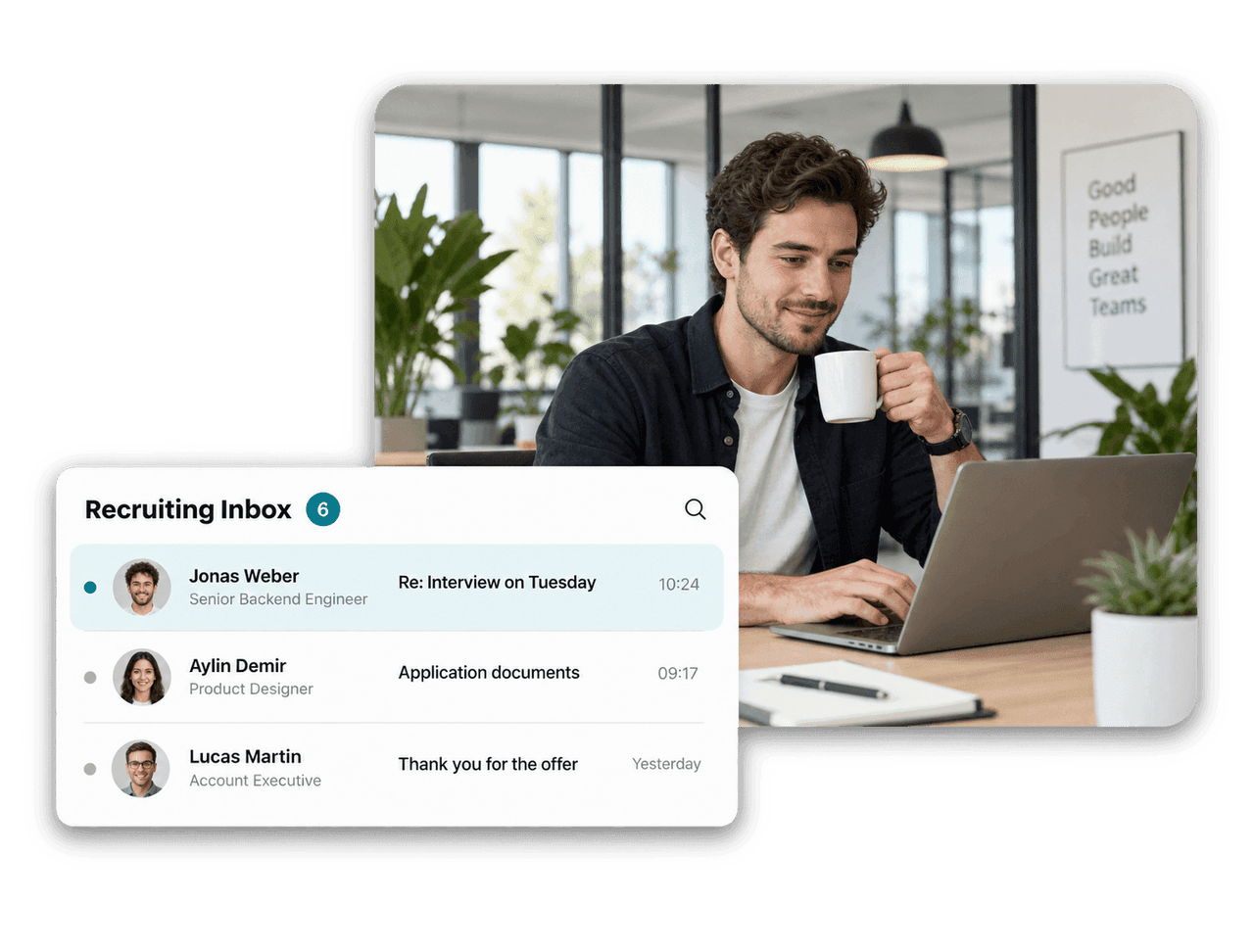
Keep every candidate email next to the application, so recruiters and hiring managers always work from the same conversation.
A global inbox plus an Inbox tab on every job. Reply, reply-all, forward or compose in one place.

Hiring managers read the full thread and reply from the Employee Hub, with no Salesforce access required.

Personalize templates with merge fields and email many candidates at once, right away or on a schedule.

Mark application fields or questions as knock-out criteria. Applicants who fail them move to Rejected automatically.
Recruiting Inbox in Salesforce
The Recruiting Inbox brings candidate conversations into the Recruiting app in a Gmail-style layout. A home-page card surfaces unread candidate emails, and each job's Inbox tab shares the filters of its candidates table.

Employee Hub
Hiring managers open a candidate in the Employee Hub, read every email sent and received, and reply from a verified company address. Every message stays on the same thread, whether it was sent from Salesforce or the Hub.

Email Templates
Build reusable templates with merge fields for candidate, job and sender details. Send them to one candidate or a whole selection, now or at a scheduled time, and preview each email with merge fields filled in before it goes out.





No. Hiring managers of a job see Communication on each candidate's page in the Employee Hub, where they read the conversation and send replies. Sending requires a verified organization-wide email address, which your Salesforce Admin sets up once.
Yes. Select candidates on a job, choose Send Emails to Candidates, pick a template and send now or at a scheduled time. Merge fields personalize the message for every recipient.
Yes. The preview shows scheduled emails on candidate, talent and employee records with merge fields filled in, and you can still edit the subject and content before they go out.
Set up a recruiting email address with Salesforce Email Services. flair creates a candidate record, sends the applicant an automatic reply and notifies a chosen user. A separate address stores incoming or BCC'd emails in an existing candidate's activity history, and you can forward a Gmail or Outlook inbox to it.
Mark any application field or custom question as a knock-out criterion with a condition, such as an expected salary above your range or no work permit. Applicants who fail it move to Rejected roughly ten minutes after applying. You configure criteria per career portal or per job, and nothing changes until you set them.
Ready to see how your organization will thrive with flair? Get in touch with us to discuss your needs and see how flair can help you boost your HR efficiency.

Take a tour of flair tailored to your top priorities
We'll support you throughout the process